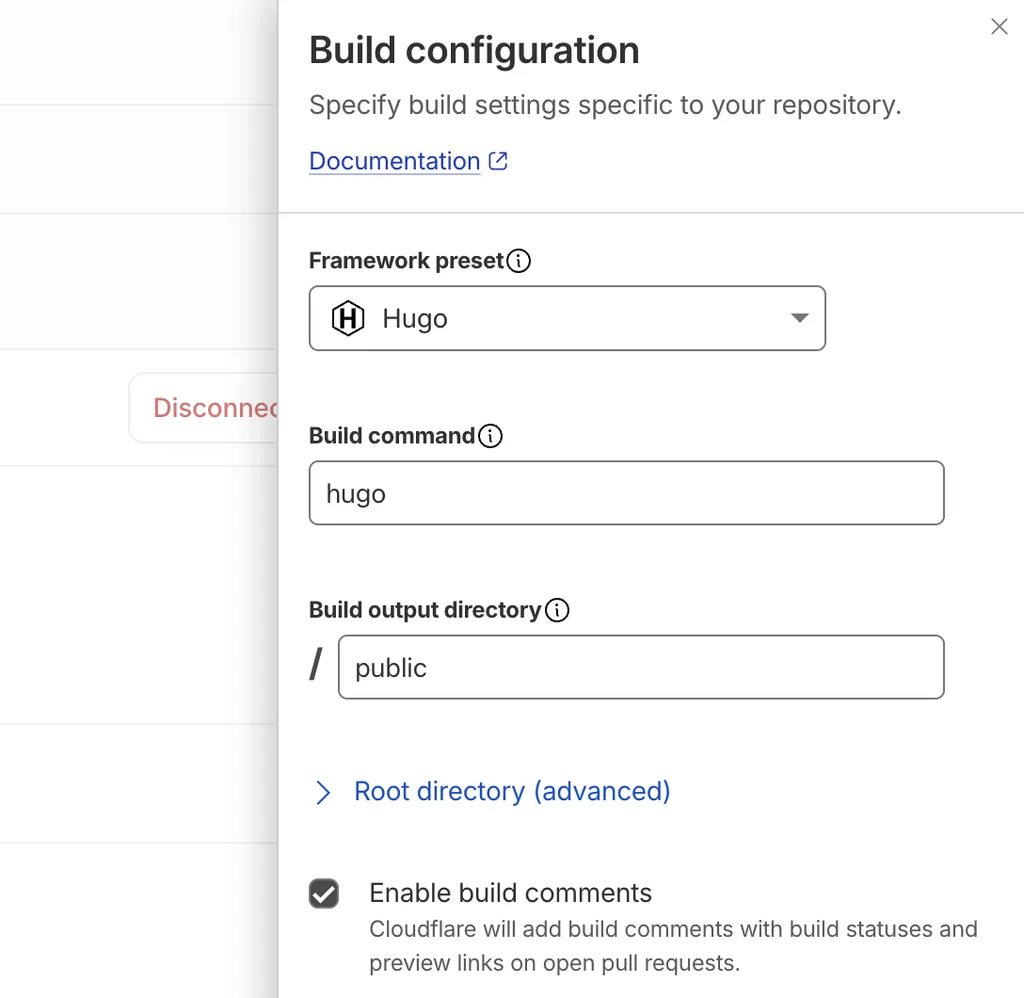
如之前的文章所提,為了搬遷 Blog ,思考了一下後,就主推 Markdown 產 static files (html/css/js) 的方式來維護部落格。整個 Blog 網站維護方式:
- 使用 Github private repo
- 使用 Hugo framework 架構
- 撰寫 Markdown 文章,以及圖片,進行 commit & push
- 在 Cloudflare Pages 跟 Github private repo 搭起來,當 github project 一有變化就觸發 Blog 網站的更新
雖然我也很習慣撰寫 Markdown 格式,但認真的說,若拿來寫 Blog 要安插一張圖,這時就累人了,圖片要縮好大小,一堆麻煩事情煩起來也是一種內耗,最後,我就請 AI 幫我把我的需求規劃成一個 Hugo-Writer 工具,可以用 `uvx hugo-writer /path/hugo-project/` 就能輕鬆啟用了
Hugo-Writer 可以對指定目錄運行起一個 Web 管理介面,其實就像去用別人的 Blog 系統,寫寫文章、拖拉圖片後還能去隱私跟重新更名,就這樣讓我更有一點動力碎念留點文字了,有興趣的可以試試看:
% hugo new site /tmp/hugo-blog
Congratulations! Your new Hugo project was created in /tmp/hugo-blog.

Just a few more steps...

1. Change the current directory to /tmp/hugo-blog.
2. Create or install a theme:
   - Create a new theme with the command "hugo new theme <THEMENAME>"
   - Or, install a theme from https://themes.gohugo.io/
3. Edit hugo.toml, setting the "theme" property to the theme name.
4. Create new content with the command "hugo new content <SECTIONNAME>/<FILENAME>.<FORMAT>".
5. Start the embedded web server with the command "hugo server --buildDrafts".

See documentation at https://gohugo.io/.

% hugo serve
Watching for changes in /tmp/hugo-blog/archetypes, /tmp/hugo-blog/assets, /tmp/hugo-blog/content, /tmp/hugo-blog/data, /tmp/hugo-blog/i18n, /tmp/hugo-blog/layouts, /tmp/hugo-blog/static
Watching for config changes in /tmp/hugo-blog/hugo.toml
Start building sites …
hugo v0.167.0+extended darwin/arm64 BuildDate=unknown VendorInfo=macports

WARN  found no layout file for "html" for kind "home": You should create a template file which matches Hugo Layouts Lookup Rules for this combination.
WARN  found no layout file for "html" for kind "taxonomy": You should create a template file which matches Hugo Layouts Lookup Rules for this combination.

                  │ EN
──────────────────┼────
 Pages            │  4
 Paginator pages  │  0
 Non-page files   │  0
 Static files     │  0
 Processed images │  0
 Aliases          │  0
 Cleaned          │  0

Built in 3 ms
Environment: "development"
Serving pages from disk
Running in Fast Render Mode. For full rebuilds on change: hugo server --disableFastRender
Web Server is available at http://localhost:1313/ (bind address 127.0.0.1)
Press Ctrl+C to stop
這時瀏覽 http://localhost:1313/ 本身就是網站了。
接著,試試看使用 Hugo-writer ,省去自己執行 hugo serve 跟開啟 browser :
% uvx hugo-writer /tmp/hugo-blog
Starting hugo server for the preview…
hugo-writer 1.20261018.1225050: /private/tmp/hugo-blog
  editor   http://127.0.0.1:8766/
  preview  http://127.0.0.1:49253/
Press Ctrl+C to stop.
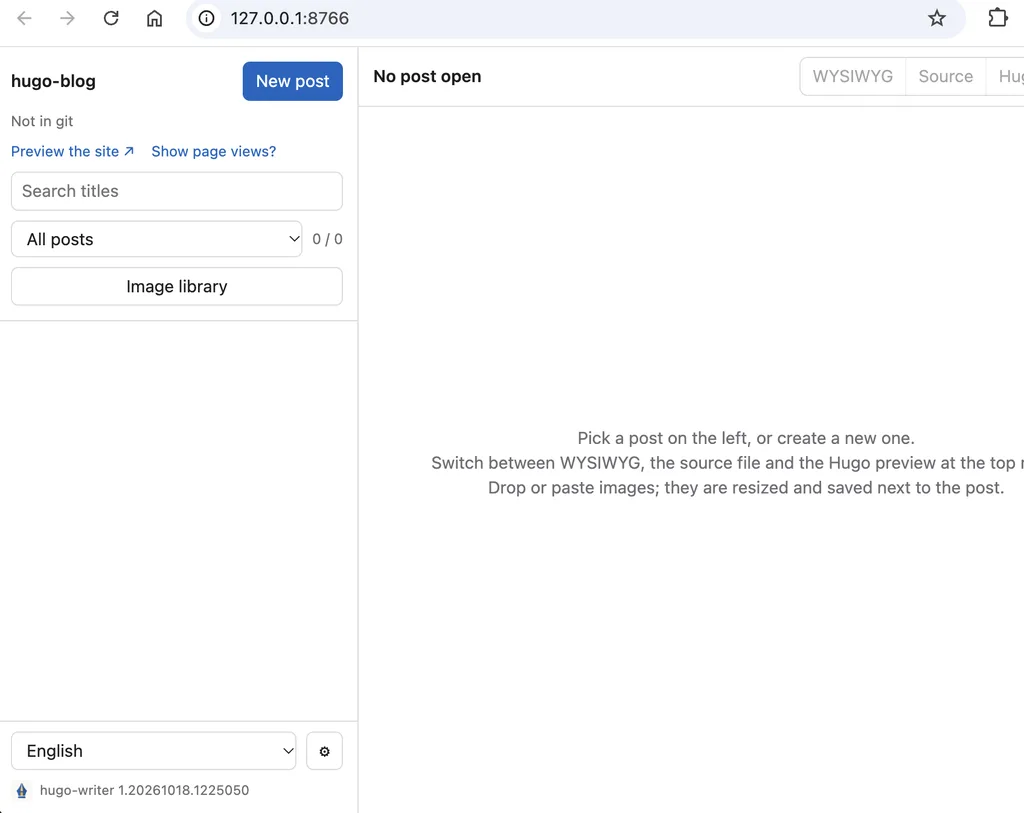
如此,要寫文章時,稍微方便一點,還可以拖拉圖片進去做管理,畢竟怎樣熟悉 Markdown 語法,還是要有個檢視介面才方便,過去一直依賴 python grip 去呈現資料,或是打開 vscode 來檢視或推上 github 來看,現在至少有一點點降低做事的摩擦力了